Introduction
Transform your living space into a cutting-edge smart home with the Google Home Mini—a compact yet powerful voice-activated assistant that seamlessly integrates into any room. Despite its small footprint, this innovative device delivers impressive capabilities, from controlling smart home devices and answering questions to streaming music and managing your daily schedule, all through intuitive voice commands.
Table of Contents
- Introduction
- Essential Preparation for Your Google Home Mini Setup
- Unboxing and Physical Setup Fundamentals
- Complete Google Home App Installation and Configuration
- Seamless Wi-Fi Network Connection Process
- Advanced Voice Match and Personalization Setup
- Comprehensive Service Integration and Smart Home Connection
The Google Home Mini revolutionizes modern living by offering hands-free convenience, centralized smart home control, personalized responses through advanced voice recognition, and seamless integration with hundreds of popular services and devices. Whether you’re preparing meals, getting ready for work, or unwinding in the evening, your Google Home Mini becomes an indispensable digital companion that responds instantly to your voice.
This comprehensive guide will walk you through every step of the Google Home Mini setup process, ensuring you unlock your device’s full potential from the moment you plug it in. You’ll discover optimal placement strategies, master Wi-Fi connectivity, configure personalized settings, link your favorite services, and solve common installation challenges with confidence.
Even if technology isn’t your strong suit, don’t worry—the Google Home Mini setup is designed with simplicity in mind. Google has streamlined every aspect of the installation process, making advanced smart home technology accessible to users of all technical backgrounds and experience levels.
From unboxing to advanced optimization, we’ll cover physical placement strategies, app installation, network configuration, voice training, service integration, and troubleshooting solutions. By following our step-by-step instructions, you’ll have your Google Home Mini fully operational and perfectly customized in just minutes.
Essential Preparation for Your Google Home Mini Setup
Before diving into your Google Home Mini setup, ensure you have an active Google account ready. If you need to create one, visit accounts.google.com for a free account that will serve as the foundation for personalizing your device’s responses, storing preferences, analyzing voice patterns, and securing your connected services.
Your Wi-Fi network is the backbone of your Google Home Mini’s performance. The device supports both 2.4GHz and 5GHz frequencies, so verify your router broadcasts at least one of these bands. Keep your network password handy—you’ll need it during configuration. For optimal performance, ensure your internet connection provides at least 1 Mbps download speed, though 5 Mbps or higher delivers the best experience for music streaming and lightning-fast responses.
Download the official Google Home app on your smartphone or tablet before starting. This essential, free app is available on both iOS (App Store) and Android (Google Play Store) platforms and serves as your primary control center for configuring and managing your Google Home Mini. Ensure your mobile device has sufficient battery life and storage space for smooth installation.
Plan your device placement carefully using the included power adapter. Your Google Home Mini performs best when positioned away from noisy appliances, speakers, or electronic devices that might interfere with voice recognition. Choose a stable, central surface with at least six inches of clearance from walls and objects, ideally in areas where family members gather most frequently.
If you own compatible smart home devices, prepare a list of products like Philips Hue lights, Nest thermostats, or Samsung SmartThings devices. Having device manuals and account credentials for services like Spotify, Netflix, or Pandora readily available will accelerate your setup process and enable immediate functionality testing once configuration is complete.
Unboxing and Physical Setup Fundamentals
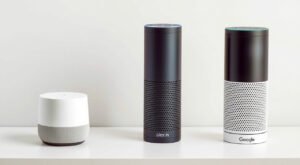
Your Google Home Mini arrives with the device itself, a power adapter with attached cable, and quick start documentation. Carefully inspect each component for shipping damage before proceeding. The compact, fabric-covered speaker should feel sturdy and well-constructed, while the power adapter should show no signs of damage or loose connections.
Strategic placement is crucial for optimal voice recognition and audio performance during your Google Home Mini setup. Position your device on a stable, flat surface in a central location where you’ll interact with it most frequently. Avoid enclosed spaces like cabinets or areas behind objects, as these locations can muffle voice commands and diminish response clarity. Maintain at least six inches of clearance on all sides for superior acoustic performance.
Minimize interference by keeping your Google Home Mini away from wireless routers, baby monitors, microwaves, and other Bluetooth devices that can create audio disruption or impact Wi-Fi connectivity. Additionally, avoid heat sources, direct sunlight, and high-humidity areas such as bathrooms or kitchen surfaces near dishwashers that could affect device longevity.
Connect the power adapter by inserting the barrel connector into the port on your device’s back panel. Plug the adapter into a nearby electrical outlet, ensuring the cord doesn’t create safety hazards. Once powered, you’ll observe four LED lights illuminate briefly, followed by a pulsing white light pattern indicating your device is ready for the setup process.
Master the physical controls before proceeding with configuration. The top surface features touch-sensitive areas for volume adjustment and microphone control. Tap the right side to increase volume, left side to decrease, or press and hold both sides for continuous adjustment. The microphone mute switch on the device’s back provides instant privacy control when needed.
Complete Google Home App Installation and Configuration
Launch your Google Home Mini setup by downloading the official Google Home app from your device’s app store. iOS users should search for “Google Home” in the App Store, while Android users can find it on Google Play Store. Tap “Install” or “Get” to download this free application, ensuring adequate storage space and stable internet connectivity throughout the download process.
After installation completes, open the Google Home app and sign in using your prepared Google account. If you’re already signed into other Google services on your phone, the app may automatically detect your credentials. Grant all requested permissions, including microphone access for voice commands, location services for personalized responses, and notification permissions for device alerts and important updates.
The app will prompt you to create or select a “home” in the interface—this virtual space represents your physical living area and serves as an organizational hub for managing multiple devices and rooms. Choose a memorable name like “Johnson Family Home” or “Downtown Apartment,” especially useful if you plan to manage multiple properties or locations in the future.
Enhance functionality by adding family members who will regularly interact with your Google Home Mini. Tap “Add person” in home settings and send email invitations to family members, granting access to shared features like collaborative music playlists, shopping lists, and home automation controls. Configure guest access for temporary users without compromising full account privileges.
The app automatically scans for nearby Google devices during your Google Home Mini setup. Ensure your device displays pulsing white lights indicating setup mode. If your device doesn’t appear within 30 seconds, try moving your phone closer or restarting both devices. The connection process uses Bluetooth proximity detection, making close physical distance essential during initial pairing.
Seamless Wi-Fi Network Connection Process
When your Google Home app successfully detects your device, you’ll hear a distinctive audio confirmation tone from your Google Home Mini. The app displays your device with a prominent “Set Up” button—tap this to begin Wi-Fi configuration. Your smartphone temporarily connects directly to the Google Home Mini to facilitate secure network setup.
Review all available Wi-Fi networks within range displayed in the app. Select your home network from the list, taking care to choose correctly if multiple options appear. If your network isn’t visible, scroll down and tap “Add network” to manually enter your network name (SSID). Hidden networks require both the exact network name and security type for successful connection.
Input your Wi-Fi password with precision, paying close attention to capitalization and special characters. Utilize the “Show password” option to verify accuracy before tapping “Connect.” Your Google Home Mini will attempt network connection, indicated by a spinning light pattern. Successful connection produces solid white lights and clear audio confirmation from the device.
Complex network environments may require additional configuration during your Google Home Mini setup. WPA2-Enterprise networks need specific credentials and certificates, while guest networks might require browser-based authentication. Networks using MAC address filtering require adding your Google Home Mini’s MAC address (found in app device settings) to your router’s approved devices list.
If connection attempts fail, try these proven solutions: move closer to your Wi-Fi router, restart both your router and Google Home Mini, or check for network outages. Some routers require disabling “device isolation” or “AP isolation” settings for proper smart home device communication. The app displays specific error codes to help identify and resolve connection issues efficiently.
Advanced Voice Match and Personalization Setup
Voice Match technology enables your Google Home Mini to recognize individual family members and deliver truly personalized responses. Navigate to device settings in your Google Home app and tap “Voice Match” to begin. The system guides you through speaking training phrases clearly and naturally, creating a unique voice profile for accurate identification across various scenarios.
During voice training for your Google Home Mini setup, speak in your normal conversational tone from different distances and angles around the device. Clearly articulate each prompted phrase, including “Hey Google” and “OK Google” wake commands, plus several common requests. This comprehensive training ensures reliable voice recognition even when you’re across the room or multitasking.
Unlock full functionality by linking personal accounts to your device. Connect Google Calendar for intelligent schedule management, Google Contacts for hands-free calling capabilities, and Google Photos for voice-activated photo viewing on compatible displays. Access “Account linking” in app settings and authorize secure access to these essential services. Multiple personal and work accounts can be integrated for comprehensive schedule coordination.
Personalize your Assistant’s voice and language preferences through device settings. Choose from multiple voice options, including various accents and speaking styles, to find your ideal match. Select your primary language and add secondary languages for multilingual households—your Google Home Mini understands and responds in multiple languages within the same conversation seamlessly.
Configure location-based services by setting home and work addresses in the app. This enables powerful features like real-time commute information, hyperlocal weather updates, nearby business recommendations, and location-triggered reminders. Multiple locations can be configured for vacation homes or frequently visited places, ensuring relevant local information wherever you are.
Review privacy settings carefully to maintain control over data collection and storage. You can limit voice recording retention, disable personal results for sensitive information, and control which data Google uses for service improvements. The app provides granular privacy controls, allowing you to balance advanced functionality with personal data protection according to your comfort level.
Comprehensive Service Integration and Smart Home Connection
Enhance your Google Home Mini setup by connecting music streaming services for effortless voice-controlled entertainment. Navigate to “Music” in Google Home app settings and link popular services including Spotify, YouTube Music, Apple Music, Pandora, or Deezer. Designate your preferred default service for music requests, while maintaining flexibility to specify different services through voice commands.
Video streaming integration expands entertainment possibilities by linking services like Netflix, Hulu, Disney+, or YouTube TV. While your Google Home Mini doesn’t display video directly, it expertly casts content to compatible devices like Chromecast, smart TVs, or tablets. Configure these services in the “Video” settings section and ensure all casting devices connect to the same Wi-Fi network for seamless operation.
Transform your Google Home Mini into a powerful smart home control hub through device integration. Access “Works with Google” in app settings to explore hundreds of compatible devices and services. Popular categories include smart lighting (Philips Hue, LIFX), climate control (Nest, Ecobee), security systems (Ring, August), and smart outlets (TP-Link, Amazon Smart Plug) for comprehensive home automation.
Organize connected devices into logical rooms and groups for intuitive voice control during your Google Home Mini setup. Create specific rooms like “Living Room,” “Master Bedroom,” or “Kitchen,” then assign relevant devices to each space. This organization enables natural commands like “Hey Google, turn off the living room lights” or “Set the bedroom temperature to 72 degrees” for effortless home management.
Create powerful custom routines to automate multiple actions with single voice commands. A “Good Morning” routine might simultaneously turn on lights, start your coffee maker, provide weather forecasts, and play your preferred news podcast. Access “Routines” in app settings, choose triggers (voice commands, scheduled times, or device states), and select desired actions from your connected devices and services for personalized automation.
Troubleshoot device connectivity issues systematically by verifying power status, Wi-Fi connections, and device-specific app settings. Some smart home devices require initial setup through manufacturer apps before Google Home integration. Maintain updated device firmware and ensure all products remain connected to the same Wi-Fi network for optimal performance and reliability throughout your smart home ecosystem.
Related Articles You Might Like