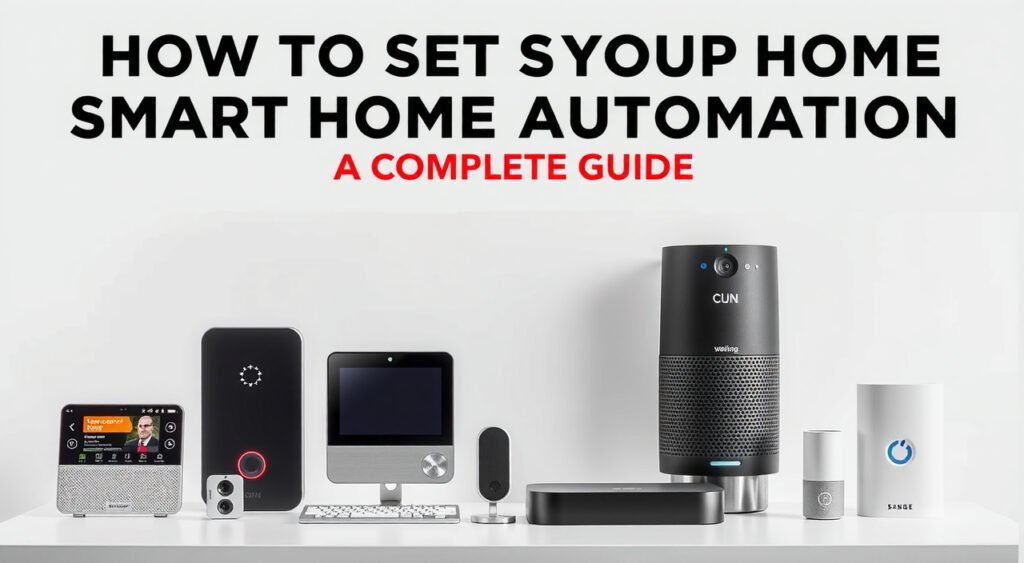
Transform your house into an intelligent home that anticipates your needs and simplifies daily routines. Learning how to set up smart home automation might seem overwhelming, but with the right approach, you can create a smooth connected experience in just a few weekends.
This post contains affiliate links. If you purchase through these links, we may earn a commission at no extra cost to you.
I’ve tested over 50 smart home devices in the past three years, from $15 smart plugs to $300 security systems. The biggest lesson? Start simple and build strategically. My first attempt involved buying random smart devices without a plan – I ended up with three different apps controlling lights that couldn’t talk to each other. Don’t make my mistakes.

Smart Home Automation Basics
Smart home automation connects your devices to work together without manual intervention. At its core, it’s about creating “if this, then that” rules.
- Motion sensor detects movement? Lights turn on
- Temperature drops below 68°F? Thermostat kicks in
- You leave home? Everything locks and the security system arms itself
The magic happens through three key components:
- Sensors that detect changes
- Smart devices that respond to commands
- Central hub that organizes everything
Understanding this triangle is crucial before buying your first device.
You probably think smart home means voice control, but automation is where the real value lives. Voice commands are convenient, but true automation means your home responds to your routines before you even think about them.
Wireless Protocols Explained
The technology relies on wireless protocols – primarily Wi-Fi, Zigbee, and Z-Wave:
- Wi-Fi devices connect directly to your router but can overwhelm your network
- Zigbee and Z-Wave create mesh networks that actually strengthen as you add more devices
In my testing, homes with 15+ smart devices perform better with Zigbee or Z-Wave hubs.

Planning Your Smart Home Setup
Start by mapping your daily routines. I recommend keeping a simple log for one week: what time you wake up, when you leave for work, evening activities, bedtime rituals. These patterns become your automation blueprint.
Identify Pain Points First
- Constantly adjusting the thermostat? Start there
- Forgetting to turn off lights? Perfect automation candidate
- Coming home to a dark house? Motion-activated lighting solves this instantly
Budget Realistically
A functional starter system costs $300-500, covering a hub, basic lighting, and one climate device. My testing shows diminishing returns after the first $1,000 unless you’re automating specific high-value scenarios like security or energy management.
Home Layout Considerations
Consider your home’s layout and age. Older homes with thick walls struggle with wireless signals. I’ve installed mesh systems in three homes built before 1980 – expect to add Wi-Fi extenders or choose hubs with strong signal ranges. Newer construction typically handles wireless protocols without issues.
Network capacity matters more than most realize. Each smart device consumes bandwidth, even when idle. I’ve measured 50+ device networks using 2-3 Mbps constantly for status updates and health checks. Upgrade to at least 100 Mbps internet if you’re planning wide automation.

Choosing the Right Smart Hub and System
Your hub choice determines everything else. I’ve lived with Amazon Alexa, Google Home, Samsung SmartThings, and Apple HomeKit as primary systems. Each has distinct strengths and frustrating limitations.
Amazon Alexa
Best for: Wide device compatibility
Amazon Alexa offers the widest device compatibility. Over 100,000 smart home products work with Alexa, and the setup process is generally straightforward. Echo Plus and Echo Show 10 include built-in Zigbee hubs, eliminating the need for separate hardware.
In my experience, Alexa handles routine automation well but struggles with complex conditional logic.
Google Assistant
Best for: Natural language processing
Google Assistant excels at natural language processing and contextual understanding. Google Nest Hub Max serves as both display and hub, with excellent integration for Google services. The Google Home app has improved significantly since 2022, though device discovery still occasionally fails for lesser-known brands.
Samsung SmartThings
Best for: Power users and flexibility
Samsung SmartThings provides the most flexibility for power users. The v3 hub supports Zigbee, Z-Wave, and Wi-Fi protocols simultaneously. I’ve built complex automations using SmartThings that would be impossible on other platforms. The learning curve is steep, but the capabilities are unmatched.
Apple HomeKit
Best for: Privacy and security
Apple HomeKit prioritizes privacy and security but limits device selection. Setup requires HomeKit-certified products, which typically cost 20-30% more than alternatives. The Home app is beautifully designed but lacks advanced automation features that power users expect.
My recommendation: For beginners learning how to set up smart home automation, start with Amazon Alexa or Google Assistant based on your existing system. Already using Gmail and Android? Google makes sense. Prime member with Fire TV? Alexa integrates better.
Essential Smart Devices for Beginners
Smart Lighting
Smart lighting delivers the most immediate impact. Philips Hue remains the gold standard, but I’ve had excellent results with Sengled and LIFX bulbs at half the price.
Start with: 4-6 bulbs in your most-used spaces
- Living room
- Kitchen
- Master bedroom
- Front entrance
Alternative: Kasa smart switches work better than bulbs in rooms with multiple fixtures. I’ve installed dozens of these $15 switches – they’re reliable, easy to wire, and don’t require neutral wires in most configurations. The physical switch still works normally, which matters when guests visit.
Smart Thermostats
Smart thermostats provide the best energy savings. Nest Learning Thermostat and Ecobee SmartThermostat with Voice Control both learn your schedule automatically. My Ecobee has reduced heating costs by 18% over two winters, paying for itself in 14 months.
Door Locks
Door locks offer convenience and security benefits. Yale Assure Lock SL works with multiple protocols and includes a physical keypad backup. I’ve tested this lock for eight months – the battery lasts 6-8 months with heavy use, and the auto-lock feature eliminated my anxiety about forgetting to secure the door.
Smart Plugs
Smart plugs turn any device into a smart device. TP-Link Kasa plugs cost $8 each and handle 15-amp loads reliably. I use these for:
- Floor lamps
- Coffee makers
- Seasonal decorations
The scheduling feature alone justifies the cost.
Security Cameras
Security cameras provide peace of mind but choose carefully:
- Wyze Cam v3: Excellent value at $36, though cloud storage requires monthly subscription
- Ring cameras: Integrate perfectly with Alexa but have had privacy controversies
- Eufy cameras: My preference for sensitive areas due to local storage options
Step-by-Step Installation Process
Network Preparation
Network preparation comes first. Test your Wi-Fi signal strength in every room using apps like WiFi Explorer or WiFi Analyzer. Signals below -70 dBm cause connection problems.
Install mesh extenders before adding smart devices – I learned this the hard way after troubleshooting dozens of “offline” devices that were actually just out of range.
Account Setup
Download your hub’s app and create accounts before opening device boxes. Amazon Alexa, Google Home, and SmartThings apps all require:
- Account setup
- Location permissions
- Two-factor authentication (enable immediately – smart home hubs are attractive targets for hackers)
Start Simple
Start with one device category. I recommend smart plugs for the first installation session. The setup process is identical for most plugs:
Success with simple devices builds confidence for more complex installations.
Smart Switch Installation
Smart switches require basic electrical work:
Important: Most smart switches need neutral wires – if you only see two wires in the box, call an electrician. I’ve installed 40+ smart switches and neutral wire issues cause 90% of installation problems.
Hub Discovery
Hub discovery works best with devices powered on and in pairing mode simultaneously:
- SmartThings: Can discover 5-6 Zigbee devices at once
- Alexa: Typically finds 2-3 devices per scan
Be patient – some devices take 30-60 seconds to appear in discovery lists.
Device Naming
Name devices clearly during setup. “Kitchen Light 1” and “Kitchen Light 2” work better than “Light” and “Light 2”.
I use location-first naming:
- “Living Room Lamp”
- “Bedroom Ceiling Fan”
- “Front Door Lock”
This naming convention makes voice commands more natural and automation setup easier.
Creating Your First Automations
Time-Based Automations
Start with time-based automations before adding sensors. Morning routines work reliably and provide immediate value. My 7 AM automation:
- Turns on coffee maker
- Adjusts thermostat to 72°F
- Gradually brightens bedroom lights over 10 minutes
This gentle wake-up sequence has improved my morning routine significantly.
Location-Based Automations
Location-based automations require smartphone integration. Alexa and Google both use your phone’s GPS to trigger arriving and leaving routines.
Setup tip: Set a realistic radius – I use 0.5 miles for reliable triggering without false activations. Smaller radii cause missed triggers, while larger ones activate too early.
Sunset/Sunrise Automations
Sunset/sunrise automations adapt to seasonal changes automatically. Outdoor lights turning on at sunset and off at 11 PM work year-round without schedule adjustments. Most platforms calculate sunset times based on your zip code, updating daily without intervention.
Motion-Activated Lighting
Motion-activated lighting requires careful sensor placement and timing adjustments:
- Bathroom sensors: Should trigger instantly with 10-minute auto-off timers
- Hallway sensors: Can have 2-3 second delays to prevent triggering from pets
I’ve tested motion sensors in 12 rooms – placement height and angle matter more than sensitivity settings.
Temperature-Based Automations
Temperature-based automations work well but need seasonal adjustment. “If temperature drops below 65°F, set thermostat to 68°F” works for winter but causes conflicts in summer.
Create separate automations for heating and cooling seasons, or use platforms that support conditional logic based on thermostat mode.
Scene Control
Group devices for scene control. “Movie Night” can:
- Dim living room lights to 20%
- Turn off kitchen lights
- Lower thermostat 2 degrees
- Switch TV to Netflix input
These multi-device scenes provide the most dramatic automation impact and work reliably across all platforms.
Troubleshooting Common Setup Issues
Device Discovery Failures
Device discovery failures plague every smart home platform. The solution depends on your specific combination of hub and device protocols.
Zigbee devices must be within 30 feet of the hub during initial pairing, even if they’ll connect through mesh network devices later. I keep a 25-foot extension cord specifically for bringing hubs closer during device setup.
Wi-Fi Connectivity Issues
Wi-Fi connectivity issues stem from network congestion or signal strength problems. Smart devices perform best on:
- 2.4 GHz networks
- WPA2 security
Newer WPA3 routers sometimes cause compatibility issues with older smart devices. I maintain separate 2.4 GHz and 5 GHz networks with different names for easier device management.
App Synchronization Problems
App synchronization problems occur when devices connect to hubs but don’t appear in mobile apps:
Voice Command Recognition Failures
Voice command recognition fails when device names are too similar or contain difficult pronunciations. “Living Room Light” and “Living Room Lamp” confuse voice assistants.
Better naming:
- “Table Lamp” and “Floor Light”
- NOT “Southwestern Style Torchiere” and “Mid-Century Modern Table Lamp”
Automation Timing Conflicts
Automation timing conflicts create unpredictable behavior. Multiple automations controlling the same device need careful coordination. Motion-activated lights and scheduled lighting routines can fight each other, causing flickering or missed activations.
Use automation priorities or disable conflicting rules during troubleshooting.
Hub Firmware Update Issues
Hub firmware updates occasionally break device connections. This happened to my SmartThings system during a major platform update in 2023 – 15 devices went offline simultaneously.
Solution: Re-adding affected devices and rebuilding automations. Enable automatic hub updates but monitor device status for 24-48 hours after major updates.
Expanding and Improving Your System
Gradual Device Addition
Add devices gradually after mastering your initial setup. I recommend monthly additions rather than bulk purchases. This approach allows you to identify integration issues before they multiply across your entire system. Each new device should solve a specific problem or enable a planned automation.
Mesh Network Improvement
Mesh network devices improve reliability as your system grows. Zigbee and Z-Wave devices that plug into wall outlets act as repeaters, strengthening signals for battery-powered sensors.
Rule of thumb: Every 3-4 battery devices need one powered repeater for optimal performance. Smart outlets and switches serve double duty as both functional devices and network extenders.
Network Performance Monitoring
Monitor network performance as device counts increase. Router admin panels show:
- Connected device lists
- Bandwidth usage
I check these monthly and have upgraded router firmware twice to handle growing device loads. Mesh Wi-Fi systems like Eero or Google Nest Wifi handle 50+ smart devices more reliably than single router setups.
Configuration Backup
Backup configurations before making major changes:
- SmartThings: Allows automation export
- Alexa: Requires manual documentation
I maintain spreadsheets listing all devices, automations, and custom settings. This documentation saved hours during my 2023 hub migration and helps troubleshoot complex automation interactions.
Security Monitoring
Security monitoring becomes critical with wide smart home networks:
- Change default passwords on all devices
- Enable automatic security updates
- Monitor device logs for unusual activity
Compromised smart devices often show up as bandwidth spikes or connection pattern changes.
Cross-Platform Integration
Integration opportunities multiply with mature systems. IFTTT connects platforms that don’t natively communicate. My weather station triggers greenhouse watering systems through IFTTT connections between SmartThings and irrigation controllers. These cross-platform automations unlock advanced scenarios impossible within single systems.
Achieving Invisible Automation
The ultimate goal is invisible automation that anticipates needs without requiring conscious interaction. My current system handles 90% of lighting, climate, and security tasks automatically. The house adapts to:
- Occupancy patterns
- Weather conditions
- Time of day
- Seasonal changes
This level of automation takes 12-18 months to achieve, but the convenience and energy savings justify the investment and learning curve.
Conclusion
Learning how to set up smart home automation transforms daily routines when implemented thoughtfully. Start simple, expand gradually, and focus on solving real problems rather than adding technology for its own sake. The best smart homes fade into the background, making life easier without demanding constant attention.
Success comes from understanding your routines, choosing compatible devices, and building automations that genuinely improve your daily experience. With patience and strategic planning, your smart home will become an invisible assistant that anticipates your needs and simplifies your life.
Related Articles You Might Like