Most smart home failures stem from Wi-Fi connectivity issues—you’ll need to enhance router placement, switch to less congested 5GHz channels, and configure QoS settings for device prioritization. When voice assistants become unresponsive, verify network status before executing factory resets. Address automation failures by recreating corrupted routines and confirming protocol compatibility across your ecosystem. For thermostat inaccuracies, relocate sensors away from heat sources and calibrate offset settings. The solutions below provide systematic approaches to resolve persistent issues affecting multi-device installations.
Key Takeaways
- Position router centrally and use 5GHz bands to minimize Wi-Fi dead zones and signal interference affecting device connectivity.
- Restart unresponsive smart speakers and verify network status; update firmware regularly to maintain cloud service communication and performance.
- Factory reset devices experiencing persistent glitches by holding reset button for 10-15 seconds, then reconfigure all settings and accounts.
- Recreate malfunctioning automation routines and verify device compatibility protocols like Zigbee, Z-Wave, or Matter before purchasing new hardware.
- Relocate thermostats away from heat sources and direct sunlight; prioritize camera traffic using router QoS settings to reduce lag.
Wi-Fi Connectivity Issues and Dead Zones
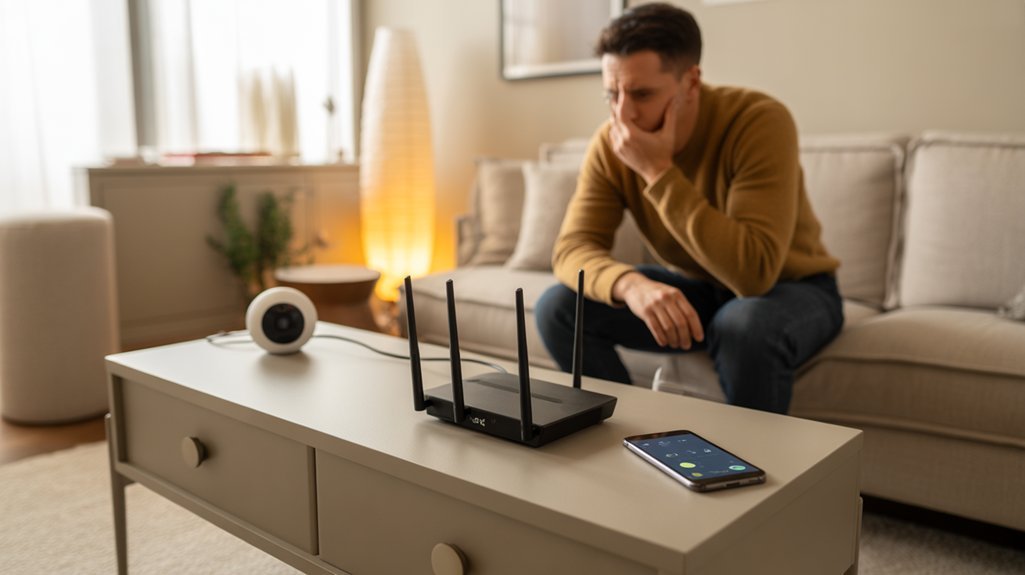
When your smart home devices consistently drop offline or fail to respond to commands, the underlying issue typically stems from inadequate Wi-Fi coverage or signal interference within your network infrastructure.
Strategic router placement at central, raised positions eliminates dead zones while minimizing network interference from appliances and metal barriers. You’ll need to evaluate wireless standards—ensure your router supports 802.11ac or Wi-Fi 6 for peak throughput.
Deploy Wi-Fi extenders or signal boosters strategically to blanket coverage gaps, but configure them on separate channels to prevent bandwidth limitations. Implement device prioritization through Quality of Service (QoS) settings, allocating bandwidth to mission-critical devices.
Verify firmware compatibility across all network components—outdated firmware creates protocol mismatches that destabilize connections.
For persistent issues, conduct a site survey using spectrum analyzers to identify congested channels. Switch to 5GHz bands where interference is minimal, reserving 2.4GHz for devices requiring extended range over performance.
Modern smart home cameras like the Aqara Camera E1 benefit from Wi-Fi 6 connectivity for improved streaming performance and reduced latency in crowded network environments.
Unresponsive Voice Assistants and Smart Speakers
When your voice assistant fails to respond or your smart speaker becomes unresponsive, you’ll need to systematically diagnose the root cause through three primary troubleshooting steps.
Network connectivity problems often prevent proper communication between your device and cloud services, while corrupted settings may require a factory reset to restore functionality.
Outdated firmware can introduce compatibility issues and performance degradation, making regular software updates essential for maintaining peak device operation.
Service disruptions from major platforms like Google and Amazon can also cause temporary device unresponsiveness, as demonstrated by recent Nest service outages that affected multiple smart home devices simultaneously.
Check Network Connection Issues
Network connectivity failures represent the primary cause of unresponsive voice assistants and smart speakers, as these devices require stable internet connections to process commands through cloud-based servers.
You’ll need to execute systematic network troubleshooting to restore functionality. First, verify your router’s operational status and confirm the device maintains connection to your Wi-Fi network.
Check signal strength indicators—weak signals below -70 dBm demand immediate attention. Identify signal interference from competing wireless networks, microwave ovens, or cordless phones operating on 2.4GHz frequencies.
Position your device within ideal range of your access point, eliminating physical obstructions like concrete walls or metal fixtures. Restart both your router and smart speaker to clear cached connection errors.
If problems persist, assign static IP addresses or configure Quality of Service (QoS) settings prioritizing your smart home traffic.
Reset Device to Default
Factory resets eliminate persistent software glitches and corrupted configuration files that survive standard troubleshooting procedures.
When your voice assistant won’t respond to commands or connects intermittently, you’ll need to execute a complete device restoration. Locate the physical reset button—typically recessed to prevent accidental activation—and press it for 10-15 seconds until status indicators confirm initialization.
This troubleshooting guide requires you to reconfigure all settings, re-authenticate accounts, and re-establish smart home integrations afterward. Document your current configurations before initiating the factory reset to expedite restoration.
You’ll regain full control over unresponsive devices while eliminating software conflicts that standard reboots can’t resolve. Execute this nuclear option when lesser interventions fail, ensuring you’ve backed up critical automation routines and custom voice commands for smooth redeployment.
Update Firmware and Software
Outdated firmware creates incompatibility issues that prevent voice assistants from processing commands or maintaining stable connections to your smart home ecosystem.
You’ll need to execute systematic firmware updates and software upgrades to restore full operational capability.
Implement these critical update procedures:
- Access manufacturer’s native application to check current firmware version against available releases
- Enable automatic updates within device settings to maintain peak performance without manual intervention
- Execute updates during low-usage periods to prevent service disruption across your network
- Verify companion app software upgrades on your mobile devices match latest versions
- Perform post-update diagnostic tests to confirm voice recognition accuracy and response latency
Your device manufacturer typically releases patches addressing connectivity protocols, security vulnerabilities, and feature improvements.
Deploy these updates immediately to maintain competitive advantage in your automated environment.
Smart Lights Flickering or Not Responding to Commands
Smart light failures typically stem from three core issues: inadequate power delivery, network connectivity problems, or outdated system software.
You’ll need to systematically verify your electrical connections, router signals, and bulb responses before moving to network resets.
Firmware updates and app synchronization often resolve persistent command delays that basic troubleshooting can’t fix.
Check Power and Connections
Before diving into complex diagnostics, verify that your lighting fixtures receive consistent electrical power and maintain stable network connections. Intermittent power delivery or compromised connectivity frequently causes smart lighting malfunctions that mimic hardware failures.
Execute these systematic checks:
- Confirm the power source delivers uninterrupted voltage by testing with a multimeter or connecting a traditional bulb to the same socket.
- Inspect all wiring connections at junction boxes, ensuring tight terminations without corrosion or oxidation.
- Verify your Wi-Fi or hub signal strength reaches each fixture location using network analysis tools.
- Check circuit breaker integrity and confirm adequate amperage capacity for your smart lighting load.
- Test connection stability by monitoring for packet loss or latency spikes in your network infrastructure.
These fundamental verifications eliminate basic issues before escalating to advanced troubleshooting protocols.
Reset Network and Bulbs
| Reset Type | Duration | Expected Outcome |
|---|---|---|
| Hub Network Reset | 30-60 seconds | Complete configuration wipe |
| Bridge Power Cycle | 10 seconds off | Connection table refresh |
| Bulb Factory Reset | 5-8 cycles | Firmware state restoration |
After reset completion, rebuild your network topology systematically. Add devices individually, verifying responsiveness between additions. This methodical approach isolates problematic nodes and prevents cascading synchronization failures across your smart lighting infrastructure.
Update Firmware and Apps
Outdated firmware represents the primary root cause of intermittent connectivity issues and erratic bulb behavior in smart lighting ecosystems.
You’ll need to systematically address both device-level and application-level software to restore peak performance.
Execute these firmware updates and app compatibility checks:
- Launch your manufacturer’s native application and navigate to device settings to initiate over-the-air firmware updates
- Enable automatic update protocols in your hub’s administrative interface to prevent future version mismatches
- Verify your smartphone OS meets minimum requirements for current app versions
- Uninstall and reinstall your control application if persistent bugs remain after updating
- Cross-reference your bridge firmware with manufacturer specifications to confirm synchronization
Deploy updates during low-traffic periods to minimize disruption.
You’re establishing a strong foundation that eliminates software-based vulnerabilities compromising your smart lighting infrastructure.
Automation Routines That Have Stopped Working
When automation routines suddenly fail to execute, the root cause typically falls into one of three categories: connectivity disruptions, firmware conflicts, or corrupted trigger logic.
Start by verifying your automation triggers remain valid—deleted devices, disabled services, or expired third-party integrations will break execution chains. Review routine scheduling parameters to confirm time-based conditions haven’t been altered by timezone changes or daylight saving adjustments.
Recreate problematic routines from scratch rather than troubleshooting existing ones; this eliminates hidden corruption in the rule engine. Test individual actions independently before chaining complex sequences.
Examine device groupings—if you’ve removed or replaced hardware, your routines may reference non-existent endpoints.
For platform-specific issues, clear your hub’s cache and force-sync with cloud services. Conflicting routines can create execution loops or priority conflicts, so audit your complete automation library.
Document working configurations for rapid restoration when system updates introduce breaking changes. You’ll maintain operational control through systematic diagnosis.
Device Compatibility and Integration Problems
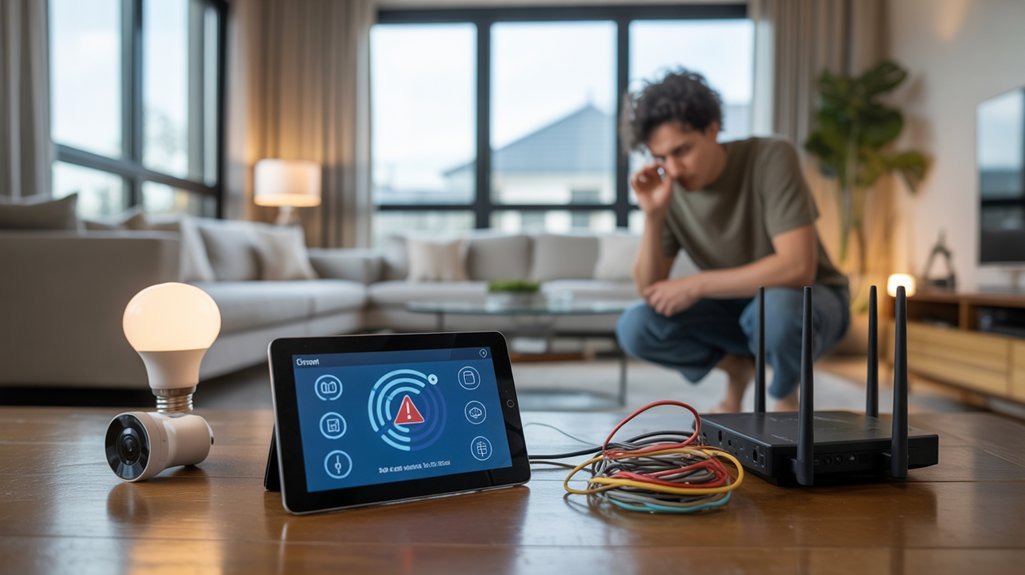
Cross-platform device ecosystems frequently generate integration failures when communication protocols don’t align with your hub’s supported standards.
You’ll encounter device compatibility issues when manufacturers implement proprietary protocols or outdated firmware versions that conflict with your central controller.
Address integration challenges systematically:
- Verify protocol compatibility before purchasing (Zigbee, Z-Wave, Thread, Matter, Wi-Fi)
- Update firmware on both hub and peripheral devices to eliminate version conflicts
- Check frequency bands – confirm devices operate on matching regional specifications (868MHz vs 915MHz)
- Review API limitations when connecting third-party services through webhooks or cloud integrations
- Implement bridge devices for incompatible protocols requiring protocol translation
When you’re experiencing persistent failures, examine your network architecture for bandwidth bottlenecks or IP conflicts.
Many integration challenges stem from router configurations blocking device discovery protocols.
You’ll gain maximum control by standardizing on open protocols like Matter, which eliminate vendor lock-in and guarantee long-term interoperability across your smart home infrastructure.
Smart Thermostat Temperature Inconsistencies
Temperature discrepancies between your thermostat’s readings and actual room conditions typically originate from sensor placement errors, calibration drift, or environmental interference affecting the device’s internal thermistor.
Execute a systematic diagnostic protocol. First, verify your temperature sensor placement isn’t compromised by direct sunlight, drafts, or heat-generating appliances within a three-foot radius.
Sensor accuracy begins with proper placement—eliminate sunlight exposure, airflow disruptions, and nearby heat sources within three feet of your thermostat.
Relocate the device to an interior wall at eye level for ideal ambient temperature sampling.
Next, implement thermostat calibration methods through your device’s advanced settings menu. Most smart thermostats offer offset adjustments ranging from -5°F to +5°F.
Cross-reference readings against a certified mercury thermometer positioned at the same height.
Address HVAC short-cycling issues that create measurement instability. Configure your system’s cycle rate settings and minimum runtime parameters to establish consistent temperature data collection.
If discrepancies persist beyond ±2°F after recalibration, your thermistor requires professional replacement.
Don’t tolerate imprecise climate control—your system’s efficiency depends on accurate sensor performance.
Security Camera Connection Failures and Video Lag

Security camera disconnections and latency issues stem from three primary failure vectors: insufficient bandwidth allocation, network congestion bottlenecks, or inadequate router processing capacity for simultaneous video streams.
You’ll need to implement these corrective measures:
- Enhance camera positioning to improve signal strength—relocate devices within direct line-of-sight to your router or install mesh network nodes.
- Configure QoS settings in your router’s admin panel to prioritize security camera traffic over non-essential devices.
- Upgrade to Wi-Fi 6 infrastructure if you’re operating multiple high-resolution cameras on legacy protocols.
- Hardwire cameras using Ethernet cables where feasible to eliminate wireless interference variables.
- Reduce resolution settings during high-traffic periods to decrease bandwidth demands without sacrificing security coverage.
Monitor your network’s real-time bandwidth allocation through your router’s dashboard. If utilization consistently exceeds 80%, you’ve identified your constraint.
Deploy additional access points or segment camera traffic onto a dedicated VLAN for peak performance and reliability.
Smart Lock Malfunctions and Access Code Issues
When smart locks fail to respond to access codes or exhibit erratic behavior, you’re typically confronting one of four root causes: depleted battery voltage below operational thresholds, firmware desynchronization between the lock mechanism and your control app, Z-Wave/Zigbee mesh network degradation, or corrupted user credential databases within the lock’s internal memory.
Execute access code troubleshooting systematically. Replace batteries immediately—even “low battery” warnings indicate insufficient power for cryptographic operations.
Force firmware updates through your manufacturer’s app, then perform a hard reset to eliminate cached errors. Strengthen mesh network integrity by positioning a powered repeater within fifteen feet of the lock.
For persistent credential failures, purge all user codes and rebuild your access database from scratch. This nuclear option resolves corrupted authentication tables that survive standard resets.
Smart lock security demands regular maintenance cycles. Audit access logs monthly, rotate master codes quarterly, and maintain backup mechanical keys in secure off-site locations.
These protocols guarantee continuous operational authority over your access control infrastructure.
Frequently Asked Questions
How Often Should I Update Firmware on My Smart Home Devices?
You’ll want to update firmware monthly or whenever manufacturers release critical patches.
Set automatic updates where possible to optimize firmware benefits like improved security protocols, bug fixes, and performance optimization.
Manual checks every 30 days guarantee you’re not vulnerable to exploits.
Update frequency depends on your device criticality—security cameras and locks demand immediate updates, while smart bulbs can wait.
Don’t skip updates; they’re your primary defense against vulnerabilities and system degradation.
Can Smart Home Devices Increase My Monthly Electricity Bill Significantly?
Smart home devices typically add $5-15 monthly to your electricity bill, depending on your ecosystem’s scale.
However, you’ll offset this through significant cost savings when strategically implementing smart thermostats, lighting automation, and energy monitoring systems.
Most devices use minimal standby power (1-5W), but their real value lies in optimizing your home’s overall energy consumption.
You’re actually gaining control over inefficient systems—smart homes typically reduce total energy costs by 10-30% through intelligent automation and real-time monitoring capabilities.
What Happens to My Smart Devices During a Power Outage?
During a power outage, your smart devices will lose connectivity and cease operation.
Upon power restoration, most devices automatically reconnect to your network, though some may require manual reboot. Device recovery time varies by manufacturer—typically 30-90 seconds for hubs and controllers.
You’ll maintain control by installing uninterruptible power supplies (UPS) for critical devices like security systems and hubs.
Configure automatic reconnection protocols in your device settings to guarantee smooth recovery and minimize downtime when power returns.
Do Smart Home Devices Work Without an Internet Connection?
Want total control regardless of connectivity?
You’ll find many smart devices offer local control through hubs like Z-Wave or Zigbee, maintaining offline functionality when your internet drops.
However, cloud-dependent devices won’t respond to remote commands without connection.
You’re best positioned for power when you architect your system with locally-controlled automation routines and LAN-based protocols.
This guarantees you’re never at the mercy of ISP outages while maintaining command over your intelligent infrastructure through direct hub communication.
How Can I Protect My Smart Home Network From Hackers?
You’ll fortify your smart home by implementing strong network security protocols immediately.
Start with WPA3 encryption on your router, create isolated VLANs for IoT devices, and enable device encryption on every connected product.
You must update firmware regularly, deploy a dedicated firewall, and utilize strong, unique passwords with multi-factor authentication.
Disable unnecessary features like UPnP and remote access unless essential.
These measures establish defense-in-depth protection, giving you complete control over your network’s security perimeter.
Conclusion
Your smart home is a digital orchestra—each device an instrument that must stay perfectly tuned. When connectivity drops or protocols clash, you’re conducting silence instead of symphony. You’ve now got the diagnostic tools to restore harmony: enhance your mesh network topology, verify API integrations, update firmware religiously, and standardize your IoT ecosystem protocols. Master these troubleshooting fundamentals, and you’ll change cacophony back into uninterrupted automation. Your connected infrastructure depends on proactive maintenance, not reactive repairs.
Related Articles You Might Like