- Key Takeaways
- Family Communication Made Simple
- Instant Multi-Room Family Conversations
- Hardware and Compatibility Requirements
- Device Pairing and Room Assignment
- Initial Device Setup Process
- Assigning Speakers to Rooms
- Multi-Device Network Configuration
- Naming Conventions Best Practices
- Verification and Testing Steps
- Custom Announcement Routines and Schedules
- Privacy Settings and Broadcast Errors
- Investment Analysis Per Room
- Common Connectivity Issues Resolved
- Step-by-Step Setup Demonstration
- Advanced Integration Tips Ahead
- Frequently Asked Questions
- Can Smart Speaker Intercom Work During Internet Outages?
- Do Smart Speaker Intercoms Record Conversations Automatically?
- Can Elderly Family Members With Limited Tech Skills Use Intercom Features?
- Will Intercom Announcements Interrupt Music or Podcasts Playing on Speakers?
- Can Guests or Visitors Access the Home Intercom System?
- Conclusion
- Related Reading
- Related Reading


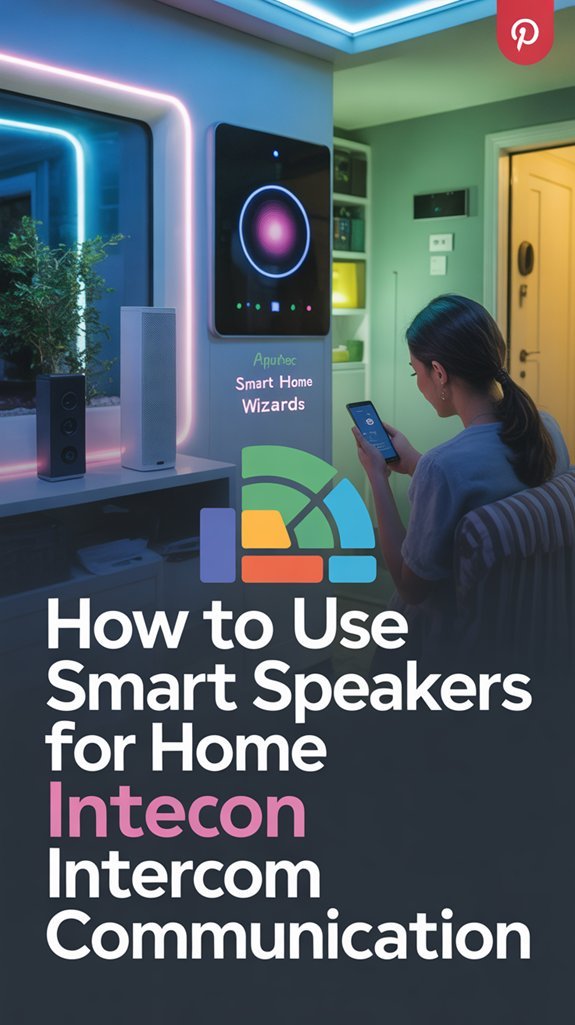
You’ll configure your Google Assistant-enabled speakers through the Google Home app by connecting them to a unified Wi-Fi network and assigning each device to its specific room location. Use the broadcast feature to transmit voice messages across all speakers simultaneously, or target specific rooms by saying “broadcast to [room name].” Verify you’ve updated firmware on all devices and implemented clear naming conventions like “Kitchen Speaker” for accurate voice recognition. The following protocols detail advanced automation techniques and troubleshooting procedures for peak intercom performance.
Key Takeaways
- For speaker-to-speaker broadcasts, use the same Wi-Fi network and Google Account(s), and turn off Do Not Disturb and Downtime.
- Assign clear, location-based names to each speaker like “Kitchen Speaker” or “Bedroom 1” for accurate voice recognition.
- Use voice commands like “Hey Google, broadcast” to send announcements simultaneously to all designated speakers throughout your home.
- Create automated routines in the Google Home app to schedule regular announcements for reminders, events, or family notifications.
- Group speakers into zones and test broadcast functionality regularly to ensure clear audio transmission and reliable communication.
Family Communication Made Simple
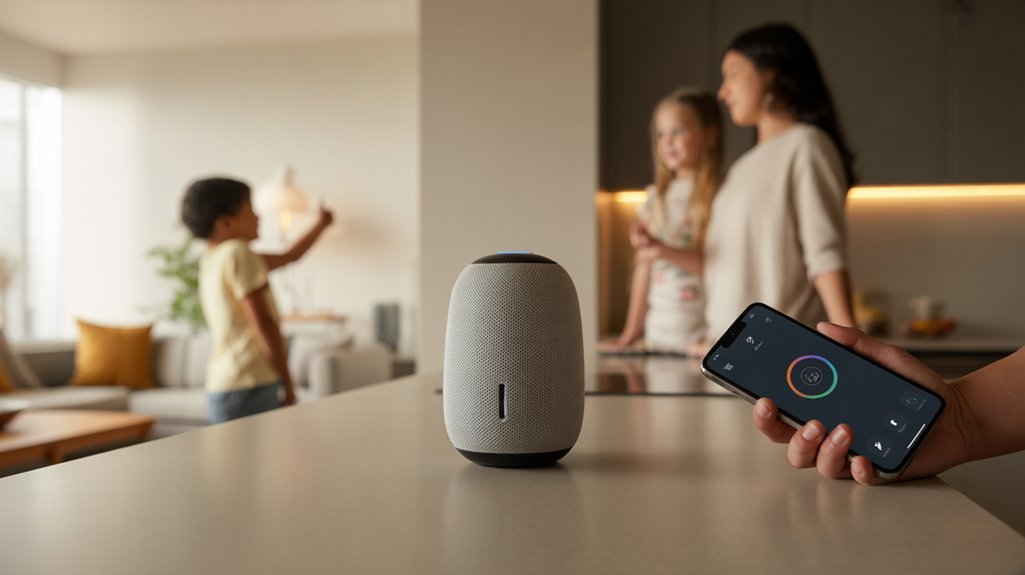
When you configure smart speakers as an intercom system through the Google Home app, you’ll establish instant voice connectivity between rooms without requiring physical movement or separate devices.
The broadcast feature alters your speaker network into a command-and-control infrastructure, enabling targeted message distribution to specific devices or full-household announcements.
You’ll implement selective routing protocols by designating which speakers receive broadcasts, optimizing your family engagement tips through strategic device placement and recipient selection.
Voice commands or app-based triggers activate the system, transmitting your message across designated endpoints simultaneously.

Testing protocol requires executing sample broadcasts to verify transmission integrity and audio clarity across all nodes. This validation guarantees operational readiness for daily communications.
Establish clear communication etiquette by defining broadcast priorities—urgent notifications versus routine updates—preventing system abuse and maintaining household harmony.
Your intercom infrastructure becomes a precision tool for coordinating activities, issuing time-sensitive alerts, and maintaining uninterrupted connectivity throughout your domestic environment.
As the smart home ecosystem evolves, integration with Fire TV Alexa Routines can further automate communication triggers based on household activities and entertainment patterns.
Instant Multi-Room Family Conversations
Your smart speaker network changes into a bidirectional communication matrix when you activate multi-room conversation capabilities beyond standard broadcast functions.
Execute voice command integration by implementing these protocol steps:
- Check the account and network requirements in Google’s broadcast instructions, then test each receiving speaker.
- Deploy quick broadcast shortcuts on your home screen interface, eliminating navigation delays and enabling immediate message transmission during time-critical situations.
- Execute test protocols by transmitting sample messages to verify acoustic integrity and message clarity improvement across all nodes in your speaker array.
- Optimize command syntax using “Google, broadcast a message” for system-wide announcements, ensuring consistent execution and eliminating communication bottlenecks.
This architecture alters isolated speakers into synchronized communication endpoints, providing instantaneous voice distribution across your entire residential infrastructure with minimal latency and maximum operational efficiency. Integration with voice assistant platforms like Alexa and Google Assistant extends intercom functionality to compatible smart home devices, creating a unified control system accessible from any location through the app interface.
Hardware and Compatibility Requirements
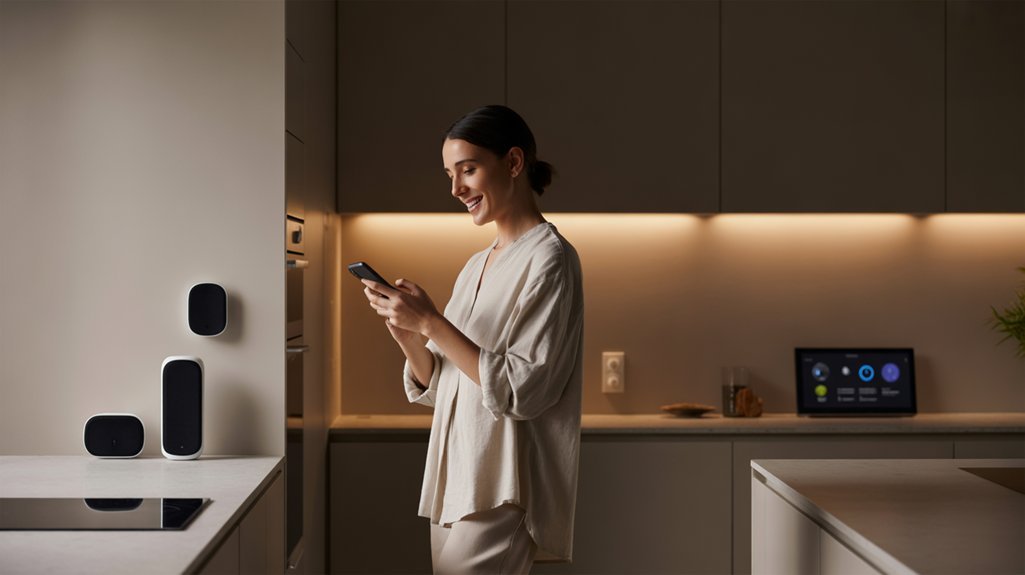
Successful intercom deployment requires a foundation of Google Assistant-enabled hardware, including Nest Hub displays, Nest Audio units, or Google Home Mini speakers that collectively form your residential communication infrastructure. You’ll need the Google Home app installed on your iOS or Android device to configure and control intercom functionality across these smart speaker models.
| Requirement | Specification |
|---|---|
| Network Configuration | Unified Wi-Fi network for all devices |
| Firmware Status | Latest updates installed system-wide |
| Control Interface | Google Home app (iOS/Android compatible) |
Your deployment checklist demands verification of firmware currency across all units, ensuring access to advanced intercom functionality and protocol improvements. Network architecture must consolidate all speakers within a single Wi-Fi environment, eliminating cross-network communication barriers. Voice-activated broadcasting capabilities activate through any Google Assistant-enabled device, granting you hands-free command authority throughout your residential zones. For devices lacking native compatibility, consider using Homebridge on a Raspberry Pi to bridge incompatible smart home devices into your ecosystem. This configuration establishes thorough intercommunication channels across your entire smart speaker ecosystem.
Device Pairing and Room Assignment
You’ll need to configure each smart speaker’s network connection and spatial assignment before establishing intercom functionality across your home.
Start by connecting all devices to your primary Wi-Fi network, then systematically assign each speaker to its physical location through the Google Home app’s device settings interface.
Complete the setup by implementing consistent naming conventions and executing verification protocols to confirm proper room assignments and broadcasting capabilities.
If you’re using Apple devices, the Home app organizes accessories by categories and rooms in the Home tab, making it easy to locate and manage your intercom-enabled speakers across different areas of your house.
Initial Device Setup Process
Before you can utilize your smart speakers as a home intercom system, you must establish proper device connectivity and spatial configuration within your network infrastructure.
Verify device compatibility across all units, then connect each speaker to your primary Wi-Fi network—this creates the foundation for synchronized communication protocols.
Launch the Google Home app and execute initial setup for room-based architecture, assigning each device to its designated zone. Implement strategic naming conventions that reflect precise locations: “Living Room,” “Kitchen,” or “Master Bedroom.” This taxonomic approach enhances voice command recognition and broadcast routing efficiency.
Once you’ve completed spatial mapping, access communication settings to activate the broadcast feature. Execute a test protocol by transmitting messages across your speaker array, confirming signal integrity and response accuracy throughout your entire network topology.
Assigning Speakers to Rooms
Once you’ve established network connectivity, navigate to the Google Home app’s home section to initiate device-room assignment protocols.
Select your target speaker device and access the settings gear icon to execute room customization. Designate precise location identifiers—”Living Room,” “Bedroom”—enabling systematic speaker organization across your network topology. This strategic categorization enhances intercom command execution and eliminates communication routing errors.
Leverage multi-device pairing within identical room assignments to establish synchronized broadcast zones. This configuration amplifies message delivery while maintaining audio coherence across paired units.
Execute periodic audits of your room assignments to verify accurate speaker organization. Maintaining precise device-location mapping guarantees your intercom infrastructure responds with maximum efficiency.
Your control over the communication network depends on meticulous room customization and deliberate architectural planning of speaker deployments throughout your property.
Multi-Device Network Configuration
When establishing multi-device network architecture for intercom deployment, your primary objective centers on creating unified device clusters through systematic pairing protocols.
Access the Google Home app’s home section to execute device management operations, grouping speakers into controllable networks. Assign each unit to designated rooms, enabling targeted broadcast execution across specific zones. This hierarchical structure grants you command over communication pathways throughout your environment.
Voice Match personalizes responses; it does not restrict broadcasts to authorized voices. Google allows guests to broadcast too.
Implement scheduled software updates through the app’s maintenance protocols to preserve peak functionality and access advanced intercom features. This systematic approach converts disparate hardware into a centralized communication network under your direct control.
Naming Conventions Best Practices
Strategic nomenclature forms the foundation of efficient intercom operations within your smart speaker ecosystem.
Deploy location-based identifiers like “Living Room Speaker” or “Kitchen Speaker” to establish immediate spatial recognition. Assign each device to designated rooms within the Google Home app, creating systematic pathways for targeted broadcasts.
Implement prefix-based Naming Strategies for multi-device zones—”Bedroom 1″ and “Bedroom 2″—enabling precise command execution across your network. Eliminate ambiguity by avoiding similar designations that compromise voice recognition accuracy.
Your Speaker Organization protocol demands regular audits, particularly following hardware relocations or network expansions. This disciplined approach to device nomenclature eliminates communication latency, reduces command errors, and enhances your control infrastructure’s responsiveness.
Master these conventions to achieve fluid intercom functionality throughout your integrated smart home environment.
Verification and Testing Steps
Three critical checkpoints validate your intercom infrastructure before deployment. Execute testing procedures by initiating sample broadcasts to designated rooms, confirming each speaker’s responsiveness and positional accuracy within your network architecture.
Your verification methods must include confirming broadcast enablement across all personal devices through the Google Home app’s communication settings—this guarantees bidirectional functionality throughout your ecosystem.
Systematically validate that all speakers maintain stable connections to your unified Wi-Fi network, eliminating potential communication breakdowns during operational scenarios. Deploy room-specific test messages to verify proper speaker assignments and targeted delivery capabilities.
You’ll establish baseline performance metrics through these verification methods, documenting response times and audio clarity across zones.
Maintain app currency by implementing regular updates, securing access to improved pairing protocols and advanced room assignment features that expand your control infrastructure’s capabilities.
Custom Announcement Routines and Schedules
Smart speakers convert into programmable announcement systems through the Google Home app’s routines architecture, enabling you to automate message broadcasts across designated time intervals and trigger conditions.
Configure custom announcements through these implementation protocols:
- Schedule routine reminders by maneuvering to the Routines tab, selecting your trigger time, and programming specific messages for family events, meal times, or task notifications that execute automatically without manual intervention.
- Deploy multi-speaker targeting by selecting all designated devices within your announcement routine, ensuring message propagation reaches every operational zone in your home network.
- Implement event-based triggers by integrating smart home devices as activation points—configure announcements when motion sensors detect arrivals or when doorbell cameras register visitors.
- Maintain routine enhancement through periodic review cycles, updating message content and timing parameters to optimize household communication efficiency and information flow.
This systematic approach alters basic intercom functionality into sophisticated broadcast infrastructure.
Privacy Settings and Broadcast Errors
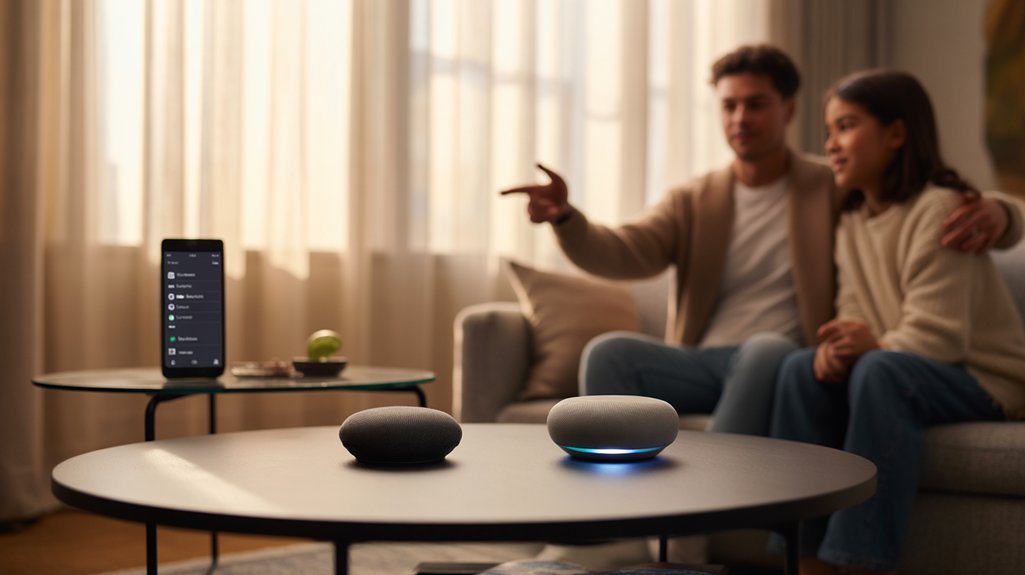
Do not treat Voice Match as broadcast access control. Review household use and personal-results settings separately.
For broadcast troubleshooting, implement systematic verification protocols:
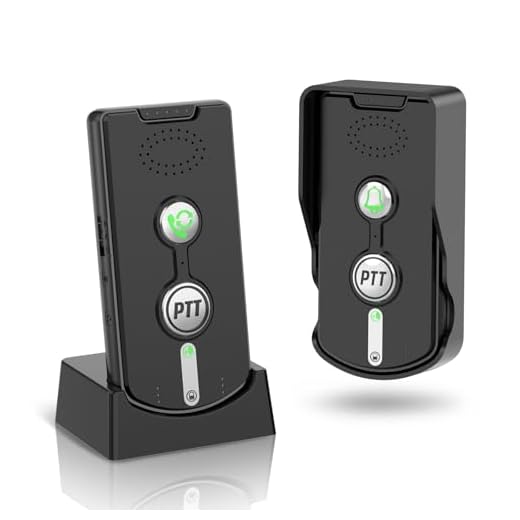
| Issue Category | Resolution Protocol |
|---|---|
| Network Connectivity | Verify all devices connect to identical Wi-Fi network |
| Software Version | Update Google Home app to current release |
| Device Authorization | Enable broadcast functionality on target devices |
| Audio Output | Confirm speaker volume settings and unmute status |
| System Validation | Execute periodic broadcast tests for response verification |
Test broadcasts after configuration changes. A successful test confirms that transmission, not guaranteed future delivery or sender authorization.
Investment Analysis Per Room
Before deploying an intercom infrastructure throughout your residence, you’ll need to calculate device allocation costs against functional benefits for each designated space. Strategic cost analysis reveals efficient deployment patterns that enhance your investment benefits while maintaining operational efficiency.
| Room Type | Device Cost Range | ROI Percentage |
|---|---|---|
| Primary Zones | $150-$300 | 70% per unit |
| Secondary Zones | $50-$150 | 70% per unit |
| Utility Spaces | $50-$100 | 70% per unit |
Evaluate a speaker intercom for the communication features your household will use. Installing speakers does not establish a fixed resale premium. Fannie Mae’s appraisal guidance requires market-supported adjustments based on comparable properties; an installation cost or feature list alone does not demonstrate added property value.
Energy savings require the relevant equipment and changes in how it operates. A speaker that controls a thermostat or light is not itself evidence of lower utility bills. ENERGY STAR’s smart-thermostat savings guidance concerns certified thermostats and heating and cooling costs, not a guaranteed whole-home saving from an intercom. Assess the exact connected equipment, current settings and household usage before estimating a benefit.
For a budget, list the exact speaker models and quantities, current purchase prices and any setup, network or ongoing charges. Record whether broadcasts actually save your household time; do not assume a fixed daily amount for every speaker. Keep any estimated convenience benefit separate from measured bill savings and cash payback.

Common Connectivity Issues Resolved
While proper infrastructure investment establishes your intercom foundation, network synchronization problems can compromise system functionality regardless of hardware quality.

Execute these connectivity troubleshooting protocols to maintain ideal speaker responsiveness:
- Network Unification Protocol: Verify all devices operate on identical Wi-Fi infrastructure. Cross-network communication barriers prevent broadcast execution and command propagation.
- Firmware Maintenance Cycle: Deploy regular software updates through the Google Home app. Outdated firmware generates compatibility conflicts and degrades system stability.
- Device Recovery Procedures: Address unresponsive units through systematic restart sequences. Execute factory resets when standard reboot protocols fail to restore connectivity.
- Broadcast Configuration Audit: Check shared accounts, Wi-Fi, Do Not Disturb and Downtime before retrying.
Minimize network congestion by controlling connected device volume.
Bandwidth saturation introduces latency and disrupts time-sensitive voice transmission between speakers.
Step-by-Step Setup Demonstration
Configure your Google Home intercom system through five sequential deployment phases.
Launch the Google Home application and access settings to activate broadcast functionality across your designated hardware. Navigate to the communication module where you’ll execute speaker selection protocols, targeting specific zones within your residential infrastructure.
Optimize operational efficiency by integrating the broadcast feature into your home screen through the favorites configuration panel. This eliminates unnecessary navigation sequences during time-critical communications.
Deploy voice-activated commands by stating, “Google, broadcast a message,” then transmit your directive. This protocol enables instantaneous distribution across all networked speakers within your command architecture.
Execute verification procedures by transmitting a test message through your established network. Monitor output across all designated zones to confirm successful propagation and identify any transmission gaps requiring immediate resolution.
Your intercom system now provides centralized control over household communications, delivering authority through effortless cross-room connectivity.
Advanced Integration Tips Ahead
Once you’ve established baseline intercom functionality, integrate your smart speaker network with complementary automation platforms to improve operational capabilities.
Configure IFTTT protocols or Home Assistant frameworks to trigger broadcasts through conditional logic—motion sensors can activate location-specific announcements, while calendar integrations enable time-based communications.
Smart speaker integration demands systematic testing across all network nodes to verify response consistency and latency thresholds.
Optimize voice command customization by establishing household-specific broadcast shortcuts within the Google Home app.
Map frequently used phrases to dedicated routines, eliminating repetitive command structures. You’ll gain millisecond-level efficiency improvements through pre-configured message templates accessible via single-phrase activation.
Deploy speaker grouping hierarchies to control information flow—create zones for private areas versus common spaces.
Test cross-platform compatibility when incorporating third-party devices, ensuring API handshakes maintain protocol integrity.
Document your configuration parameters systematically, enabling rapid troubleshooting and scalable expansion as your automation ecosystem evolves.
Frequently Asked Questions
Can Smart Speaker Intercom Work During Internet Outages?
Do not assume your smart-speaker intercom will work during an internet outage. Check the exact device and messaging feature: Google Assistant Broadcast requirements include compatible devices on the same Wi-Fi network and the relevant account and app setup. These requirements do not establish an offline messaging fallback.
Bluetooth playback is a separate feature. Google documents Bluetooth music output, with alarms, timers and assistant responses remaining on the Nest or Home device. Bluetooth support or a mesh network alone is not evidence that room-to-room intercom messages will work without internet access.
If communication during an outage matters, choose equipment whose manufacturer documents the required local operation and power supply. A separate hardwired intercom may provide another communication path, but verify its own power and network dependencies rather than assuming redundancy guarantees continuity.
Plan household communication around the specific outage conditions and verify the equipment under those conditions. Do not rely solely on a cloud-dependent speaker feature for critical communication.
Do Smart Speaker Intercoms Record Conversations Automatically?
For Google Assistant speakers, standby audio is processed to detect activation. Google says it is not sent to its servers while the device remains in standby.
After activation, the request goes to Google servers. A similar-sounding noise or accidental manual activation can trigger this too. Capture is not limited to deliberate wake words. See Google’s Assistant privacy explanation.
Server processing and saved account audio are separate. Google Assistant’s optional voice and audio activity setting is off unless you enable it.
Review voice and audio activity controls. Turning this setting off stops that account-history audio saving. It does not delete earlier recordings or prevent request processing. Other settings may save audio elsewhere.
These history controls do not make this Google Assistant broadcast workflow local-only. Use the device’s microphone mute switch when you want to stop voice activation. Spoken broadcasts need the microphone when spoken. Devices using Gemini for Home have different Home History controls. Consult Google’s Home and Nest Privacy Hub for that service.
Can Elderly Family Members With Limited Tech Skills Use Intercom Features?
Yes, you’ll find elderly users can master intercom features through user-friendly interfaces designed for accessibility.
You’re leveraging voice commands that eliminate complex navigation—they’ll simply say “Drop in on kitchen” or “Announce dinner’s ready.”
You’ll configure preset contacts and simplified protocols during initial setup, granting them immediate communication power.
Integration with existing routines guarantees they’re controlling essential connections without technical barriers.
You’re establishing a reliable, voice-activated command structure they’ll confidently operate.
Will Intercom Announcements Interrupt Music or Podcasts Playing on Speakers?
Yes, intercom announcements will trigger music interruption and podcast pause across your speaker network.
You’ll maintain complete command over your audio ecosystem—the intercom protocol automatically overrides all playback when you broadcast.
After your announcement concludes, your content resumes from where it stopped.
This integration guarantees you’re never ignored, though you can configure individual speakers to duck volume instead of full pause, giving you granular control over interruption behavior throughout your home system.
Can Guests or Visitors Access the Home Intercom System?
Yes. Google says guests can broadcast messages from compatible speakers or displays.
Voice Match enrollment is not required for this feature.
Do not rely on app membership to prevent spoken announcements.
Agree household rules for speaker use; account permissions and voice access are different.
Conclusion
For Google Nest or Home speakers, follow the Google Home app setup instructions, then check the Broadcast requirements for your devices and accounts. Give rooms and devices clear names and try a noncritical message to the intended destination. Google’s consumer instructions do not require you to verify API handshakes, manually assign multicast groups or review connection logs every week. If a message fails, check the documented network, account and interruption settings and use the manufacturer’s troubleshooting guidance. Confirm that your particular setup works before relying on it; successful setup does not guarantee communication during outages.
🔌 Smart Speaker and Intercom Search
Browse the existing smart-speaker and intercom search. Check each model’s broadcast compatibility before choosing a device.
Make Your Home Smarter
Device reviews, automations, and the deals worth grabbing.
Related Articles You Might Like